NINA Bridge
Dubbing and subtitling project management
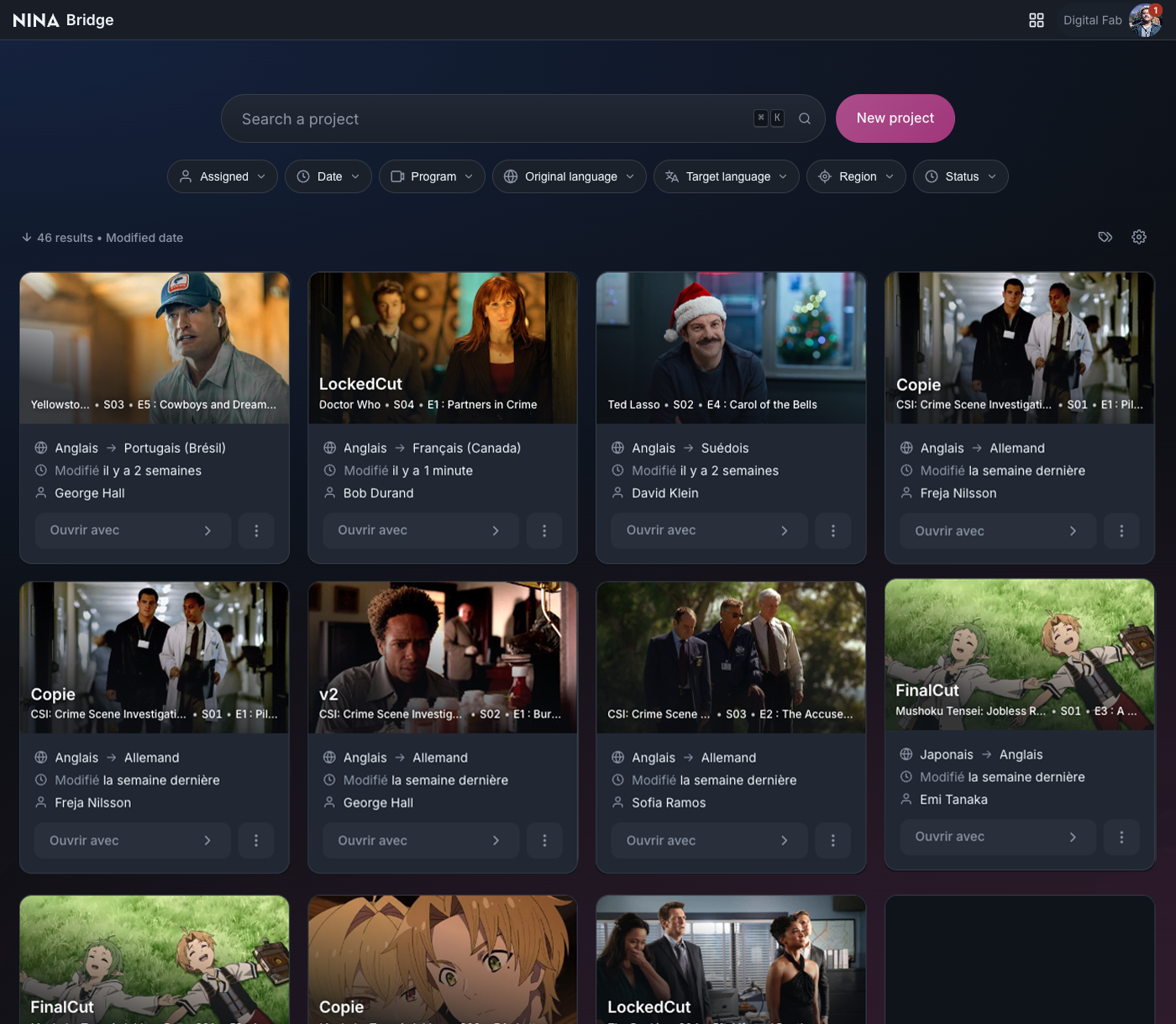
What you can do in NINA Bridge
NINA Bridge is the NINA suite application dedicated to managing dubbing and subtitling projects. It is the heart of your production: you create your projects there, organize them, share them with the other contributors and find them again.
- create a project from one or more video files, or from a template;
- organize your projects with metadata and labels;
- find a project with search, filters and sorting;
- share a project with the members of your Workspace, with a role;
- customize the display: view mode, order, visible information, application opened by default.
Prerequisites
To use NINA Bridge, you must:
- have access rights to the NINA Portal application;
- use the Google Chrome browser;
- have a smartphone for two-factor authentication.
NINA Bridge documentation
- Discover the NINA Bridge interface: the areas of the main screen, the project card and support;
- Create and find projects in NINA Bridge: creation, search, filters, sorting and labels;
- Manage a project in NINA Bridge: properties, access, region, duplication, comparison, import, versions, deletion and bulk actions;
- Customize the NINA Bridge display: the Customize window;
- Manage your account and switch Workspace in NINA Bridge: Workspace, language, theme and logout;
- NINA Bridge glossary: the NINA Bridge terms;
- Moving from NINA Portal to NINA Bridge: equivalents with NINA Portal and new features.
NINA Bridge FAQ
Since when has NINA Bridge been available?
NINA Bridge has been available since October 1, 2026.
Are my NINA Portal projects carried over to NINA Bridge?
Yes. All your projects are automatically accessible in NINA Bridge, with no action on your part.
Do NINA Portal and NINA Bridge run in parallel?
Yes, until October 31, 2026, so as not to disrupt users. NINA Portal will be shut down on that date.
I'm coming from NINA Portal: where do I find my bearings?
The article Moving from NINA Portal to NINA Bridge shows where the NINA Portal features are located in NINA Bridge, for example Mine only, project assignment or the Bucket, and lists the new features.
Are the other NINA applications affected?
No. NINA Bridge only replaces NINA Portal; the other NINA applications do not change.
How do I open a project to work on it?
Click Open with NINA Dubbing on the project card. The application opened by default is set in Customize > Open in ….
How do I switch Workspace?
Click the name of the active Workspace and your initials, on the right of the header, then click the Workspace you want. The details are given in the article “Manage your account and switch Workspace in NINA Bridge”.